 Kingly TeamKingly Team
Employees are advised to send their timesheets to the billing email.
Here is the format for the timesheet.
Click on Payroll and choose Employees to show the employees name and the rate per hour.
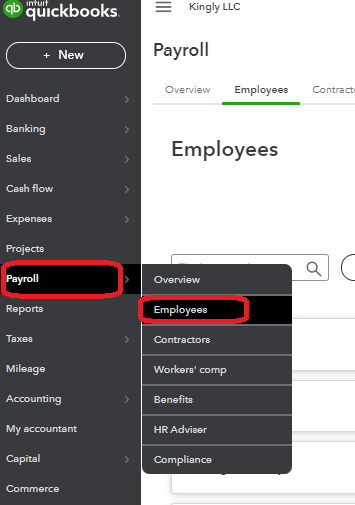
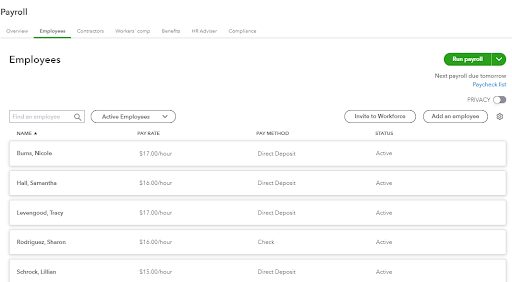
Click on Payroll and choose Employees to show the employees name and the rate per hour.
Check the email timesheet for every employee and enter the number of hours worked in QBO.
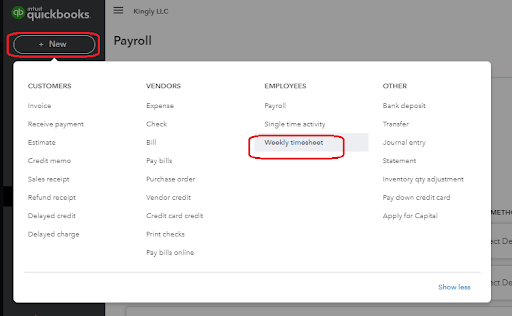
Go to New and choose Weekly Timesheet. Enter the number of hours per week.
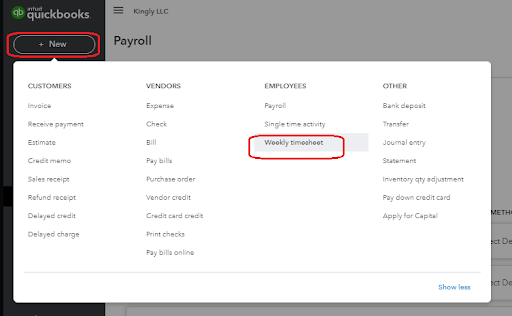
Here are information needed for the Timesheet
NOTE:
Make sure to untick Billable and enter the number of hours per day according to the timesheet provided by the employee.
Once the number of hours entered make sure to save and new.
Click on Payroll and choose Contractors to show the contractors name.
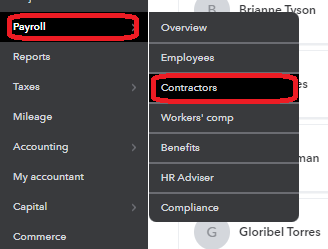
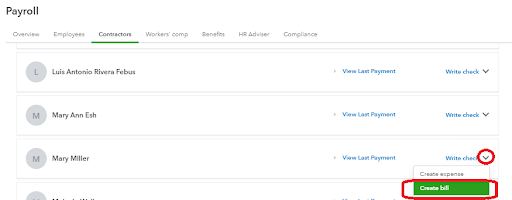
Choose the contractor’s name from the list or if the name is not yet there, you can add the name to the list.
Click on the dropdown and choose “Create Bill”
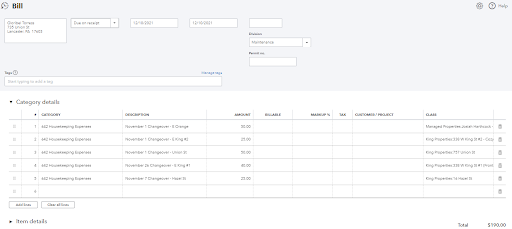
These are the information needed on the bill. Please also make sure to attach the file or invoice submitted by the contractor. Then Save.
NOTE:
Check for any additional notes in the email and for things that the cleaner purchased on behalf of the company.