 Kingly TeamKingly Team
Who |
| Department | Accounting Team |
Why |
| Created by | Joanna Orig |
When |
| Date created | |
Provisions |
| Revised by | |
Policy |
| Revised date | |
WHAT | ☐ POLICY | ☑ REFERENCE DOC | ☐ PROCEDURE |
Open Quickbooks and click on Banking.
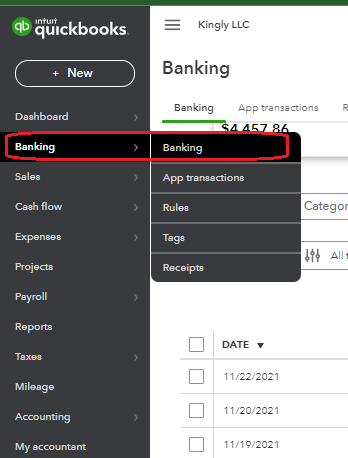
On this page, you will see all the Bank accounts we have and all the transactions that we need to match.
Here are the list of Bank accounts:
Check the App Transactions to check all the pending transactions that need to be matched.
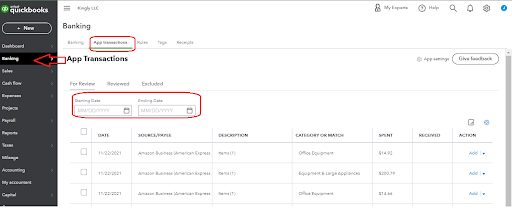
There is an option to filter by date, if you are searching for specific transactions.
Click one transaction to know the details of it.
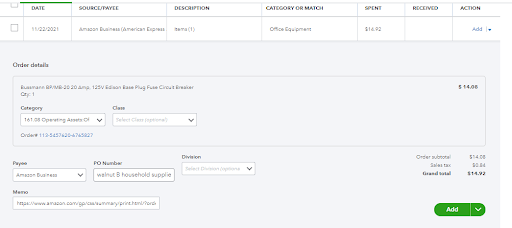
Make sure to check and add details per transaction. Here are the needed details to check and add.
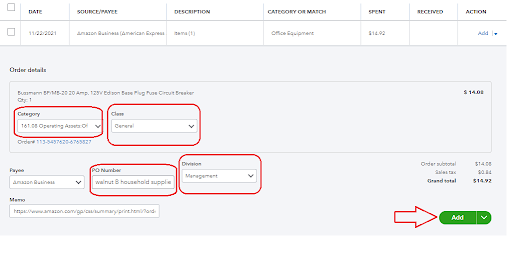
– this depends on what item was purchased. We have for Household, Furnishing, office items, large and small equipment.
(Any sort of investment that pertains ON THE GROUND operations
– food Amazon transaction, we choose GENERAL. If the item purchase is for a specific location, we can also choose a class, just click on the dropdown and check the options.
– this important for Amazon transactions. This helps in checking if the item purchased is billable or not.
– you can choose between Management, Maintenance, Rehabilitation and Setup.
Once everything is good, click on ADD.
As for this example,this is an Amazon transaction. We will then click on Banking and choose an American Express Amazon Bank account.
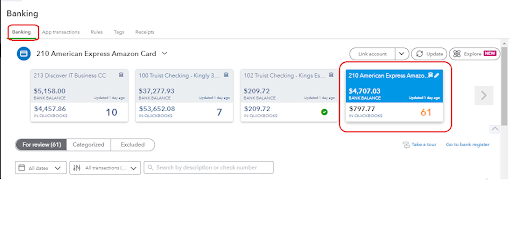
Search for the transaction that we have just added.

Click on it if you want to know the details. If all is good Click on Match.
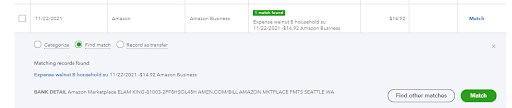
~ You will know that the transaction is billable when you check the PO Number field. It will have a note that it is billable or non billable.
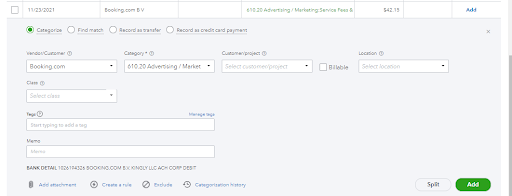
Instead of just clicking the Match button, you need to click on “Categorize”.
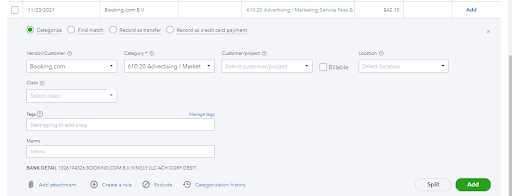
Here are information you need to enter:
1) Vendor/Customer — Amazon/booking.com/vrbo, choose on the dropdown what OTA or vendor is it.
2) Category — it is default on what you chose on the app transaction part, make sure it is the billable
3) Customer/Project — Choose which customer is it
4) Location — choose the location or which property is it for
5) Class — choose if Maintenance, Management, Rehabilitation, Setup or General
6) Tick on the Billable box then click on Add.
Once completed, you can then click on the Match button.
Then repeat the whole process until all transactions in APP Transaction are matched.
There are transactions that need further checking, if unsure contact Elam.
Click on Banking and choose the Bank account “100 Truist Checking”.
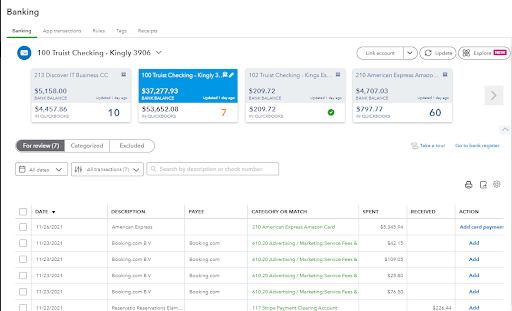
Click on the transaction to check the details
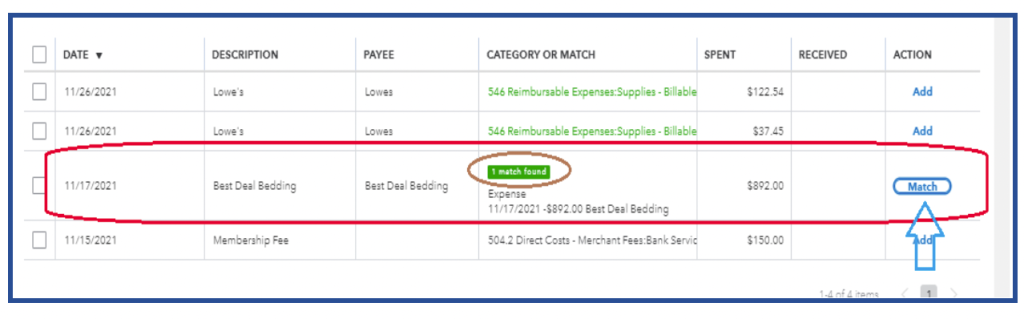
For any transaction that already has a 1 match found, you can go ahead and click Match button.